
How to Pick a Featured Image That Gets Clicked
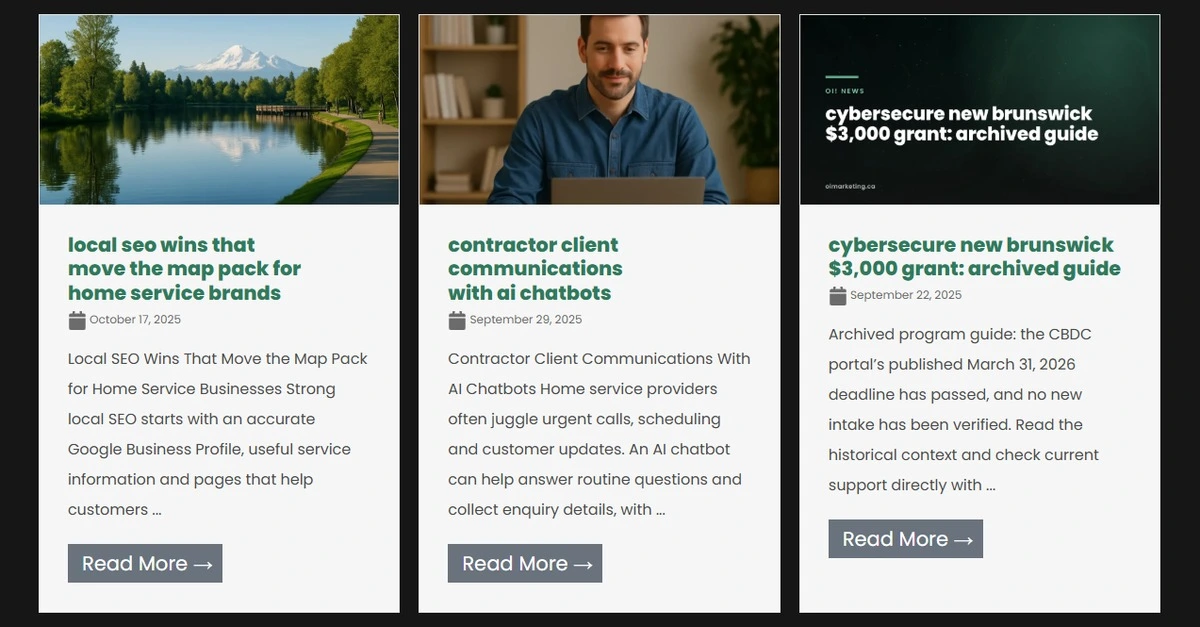
A good LinkedIn link preview shows a sharp image and tells readers what the page is about at a glance. A link preview is the card LinkedIn builds when you paste a web address into a post, with an image sitting above the page’s title. Select any image to zoom in.
LinkedIn Pulls the Preview from Your Share Image
A featured image is the image your website uses for the article itself or its blog listing. A share image is the image LinkedIn looks for in the page’s Open Graph settings. In the page code, the setting is called og:image.
WordPress plugins such as Rank Math can use the featured image as a fallback. Set a dedicated share image if the website image loses its focal point or important text in LinkedIn’s wider preview.
Use a Wide Image for LinkedIn
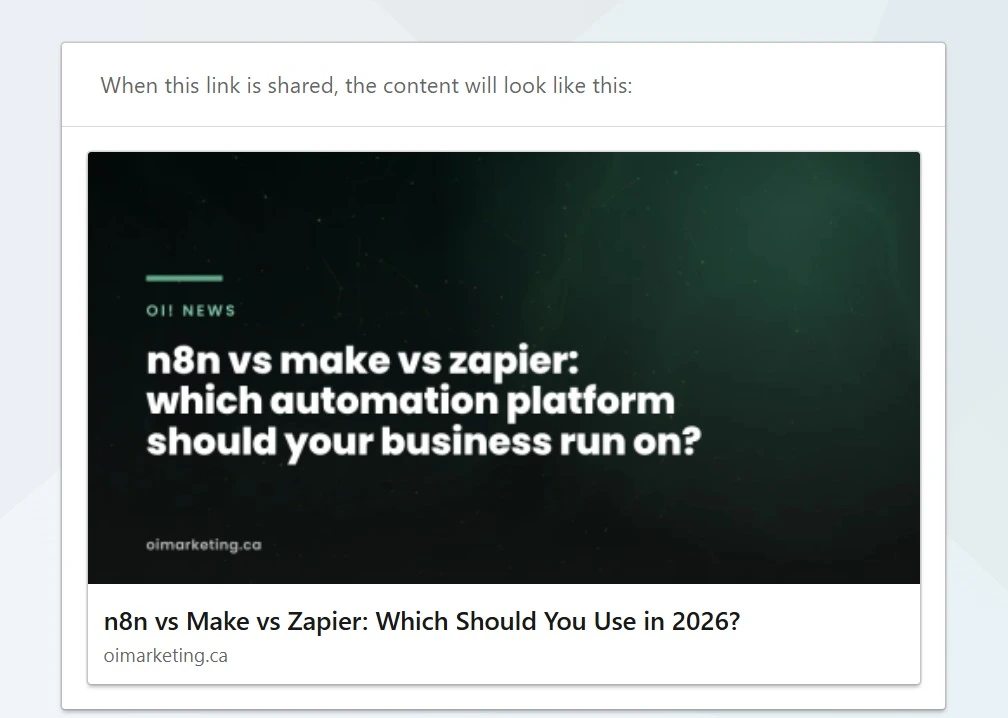
For a LinkedIn link preview image, LinkedIn recommends a wide 1.91:1 aspect ratio, with a minimum of 1,200 × 627 pixels and a maximum file size of 5 MB.
Choose a crop that keeps the subject away from the edges. Then check the actual LinkedIn preview, especially when the original photo is square or vertical.
What Makes a Thumbnail Stand Out in the Feed
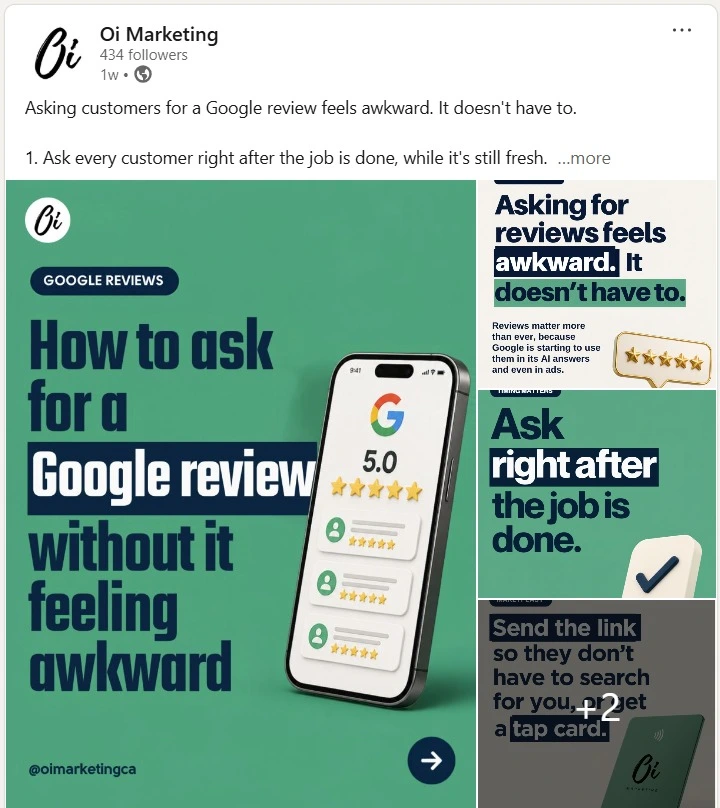
A thumbnail only has a brief moment to stand out as someone scrolls through their LinkedIn feed, and an image that still reads clearly when it’s small is the one that earns the click. When we pick the featured image for an Oi! News post, we shrink it down to thumbnail size and check how it looks before we commit to it.
These four choices help an image hold up at the small size most people see on their phones:
- One clear subject reads faster than a busy scene, so a single face or object works better than a crowded group photo.
- Large text kept away from the edges stays readable on a phone screen, where small lettering near the border is easy to miss.
- Strong contrast, meaning a clear difference between the light and dark parts of an image, helps it stand apart from the posts around it.
- An image that matches the post title tells readers what they're about to get, so an Oi! News post about local search might show a map pin instead of a stock photo of a handshake.
Featured Image Mistakes and What to Do Instead
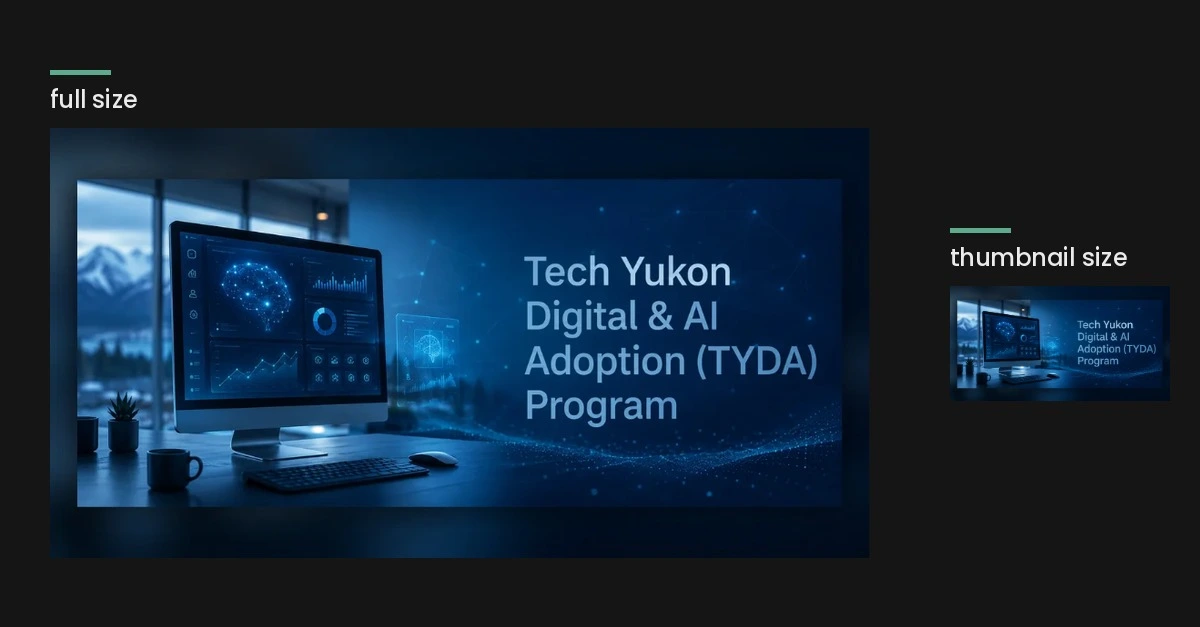
A featured image can look sharp at full size on a monitor, but fine details and small labels often become hard to make out once it shrinks to a thumbnail. Before you settle on an image, zoom out until it’s roughly the size of a phone preview and check that it still reads clearly.
Reusing the same generic image across posts makes every share look alike, and people scrolling past may assume they’ve already seen the post. A topic-specific photo or a piece of custom graphic design helps every article stand apart from the last one.
Squeezing a full headline into an image usually makes the lettering too small to read. LinkedIn already prints the post title under the preview, so a short phrase on the image works better than repeating every word of the title.
Check the Preview Before You Post the Link
Open LinkedIn Post Inspector once the page is public. It shows which title and image LinkedIn picks up so you can catch a blurry or badly cropped image before sharing.
If your team already reviews pages for local search engine optimization, add the social preview to the same publishing checklist.
- Choose the share image. Set it in your post’s social settings.
- Open Post Inspector. Enter the published page’s public URL.
- Review the card. Read the title and check the crop at phone size.
- Fix any issues. Save your changes and inspect the URL again.
- Share the link. Use the public URL once the preview looks right.
Old Previews Stick Around Until You Refresh Them
LinkedIn can reuse a cached preview after you change the share image. Use Post Inspector to refresh the URL so future LinkedIn posts use the updated preview. Existing LinkedIn posts keep the preview they already have.
When you upload an image directly to LinkedIn instead of sharing the link, readers can’t click the image through to your post. A link in the caption still works, but for social media posts that point to your blog, sharing the page link makes the preview image itself a link to the article.
If you’d like your featured and share images set up the same way across your whole site, we can walk you through it as part of our website design work.
Common Questions About LinkedIn Link Preview Images
Why Does My LinkedIn Link Preview Show No Image at All?
Check that the public page points to an image LinkedIn can fetch and that the file meets its size requirements. If the page shows a blank or outdated preview, inspect the public URL after making the changes.
Do I Need to Know Code to Set a LinkedIn Link Preview Image?
Most WordPress SEO plugins let you set it without code. In Rank Math’s Social tab, choose an image for the post, then check the live URL in LinkedIn Post Inspector.
Does a LinkedIn Link Preview Image Need Text on It?
Your LinkedIn link preview image can work perfectly well without any text on it. A few large words can help when they add something the title doesn’t already say.